Visual guide
Screencast
Follow this visual walkthrough of Smart Bundle — from the dashboard to a live storefront widget. For typed steps, open the Tutorial.
Live storefront result
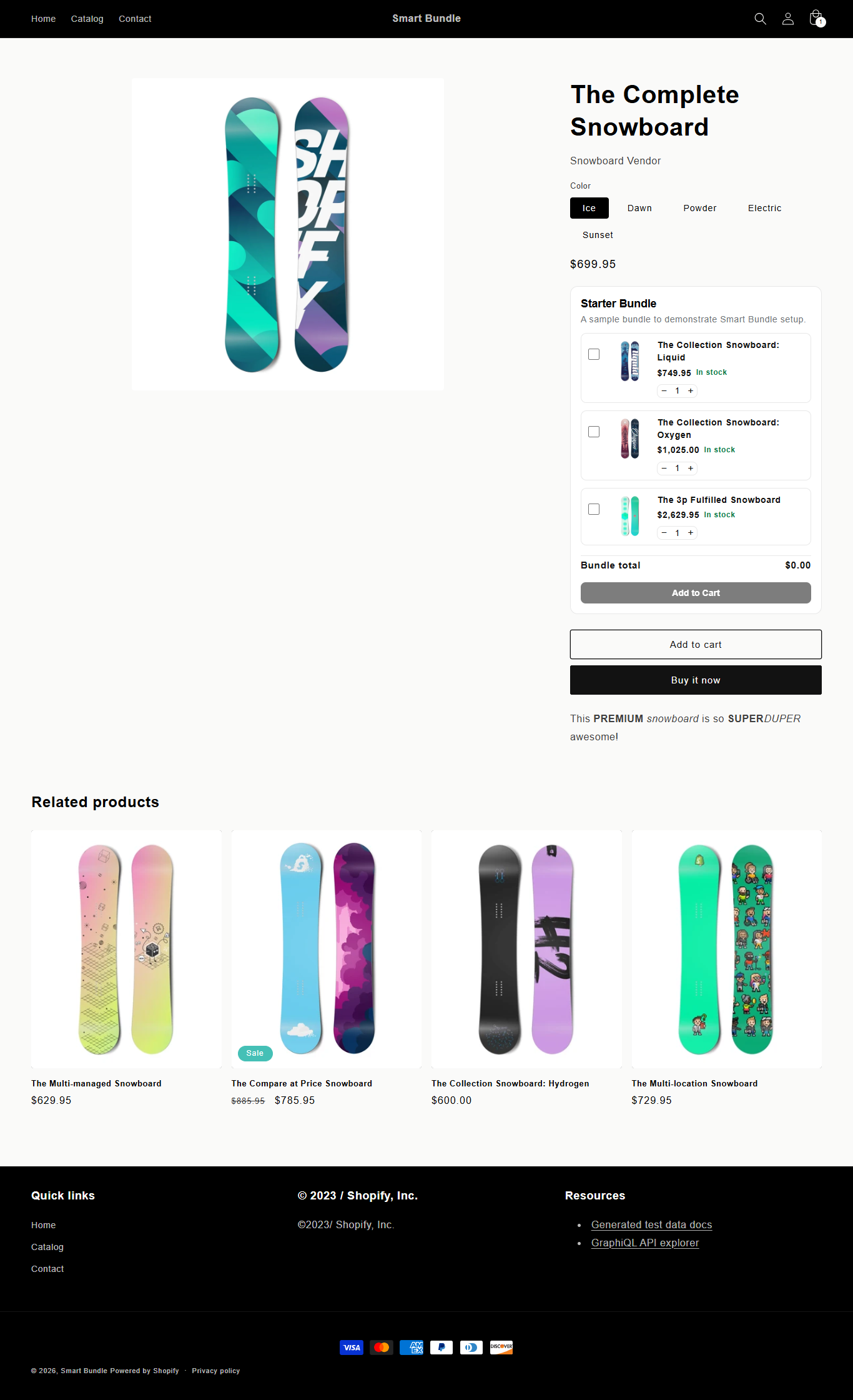
Smart Bundle widget shown live on a product page
What this walkthrough covers
1. Opening the dashboard
- Open Smart Bundle from Shopify Apps.
- Review subscription status and bundle statistics.
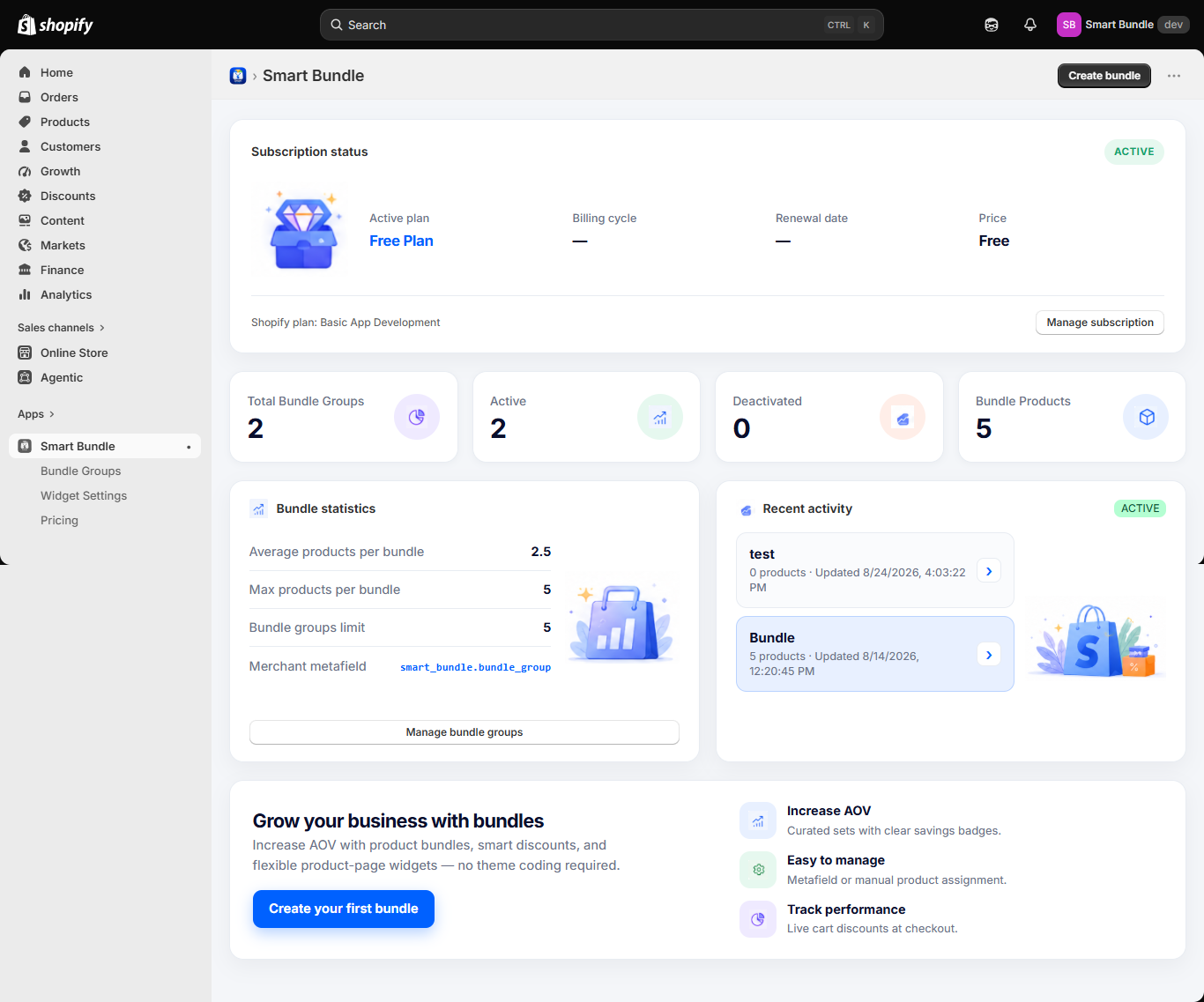
Smart Bundle Dashboard
2. Creating a bundle group
- Click Create bundle group.
- Set name, display location, assignment, and discount settings.
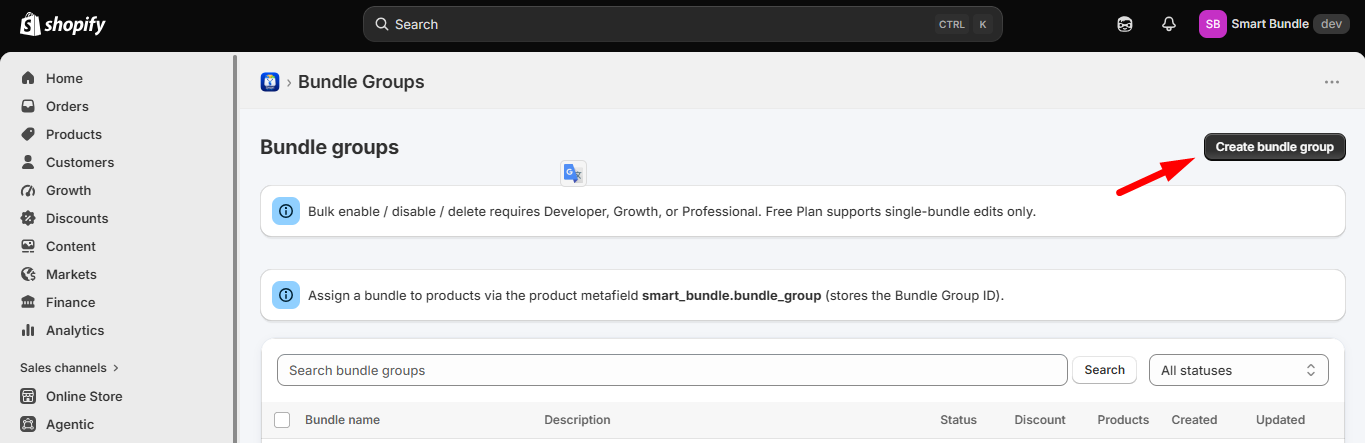
Start a new bundle group
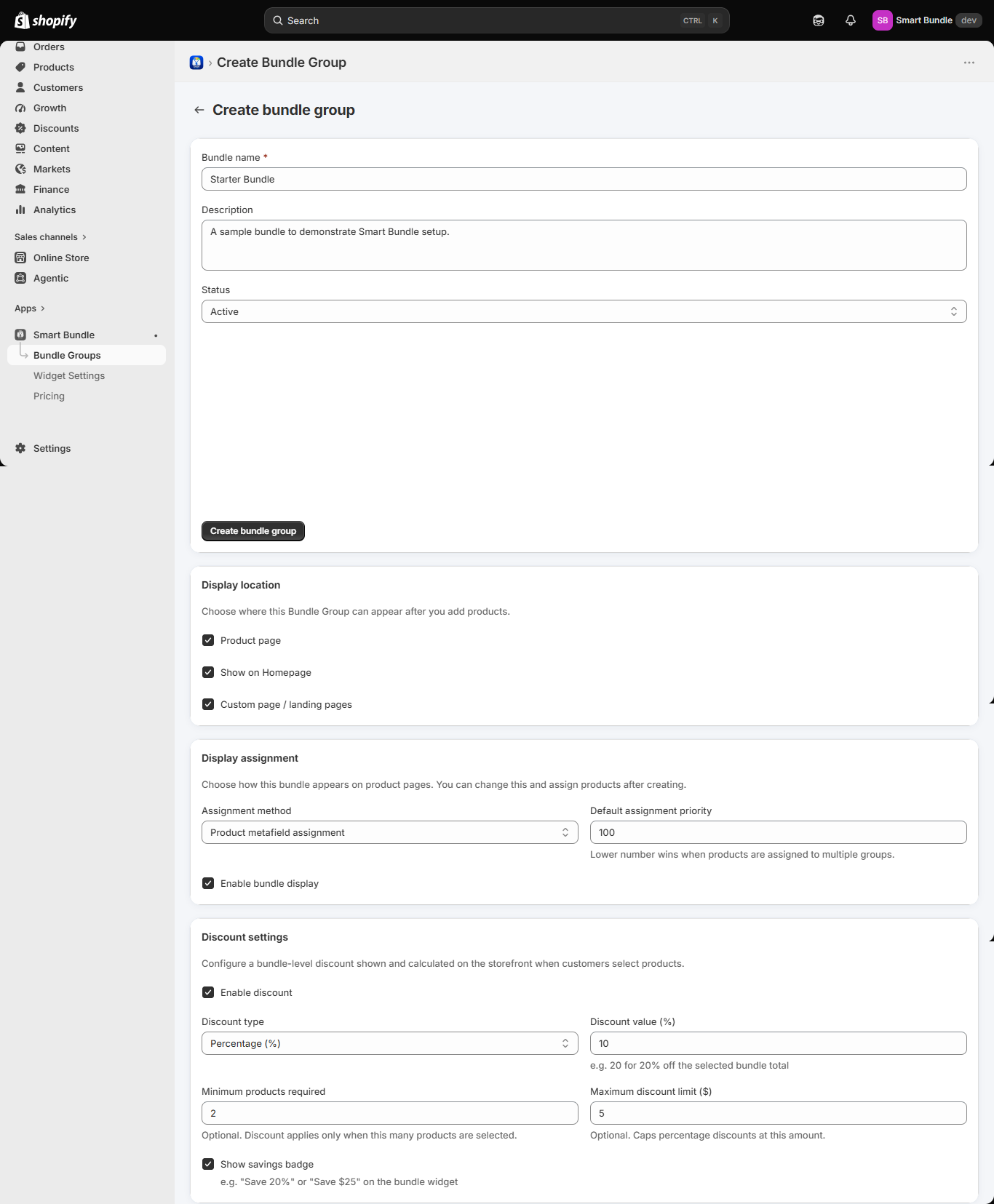
Fill in bundle details and discount settings
3. Adding products
- Open the Bundle products tab.
- Search the catalog and add up to 5 products.
- Save the product list.
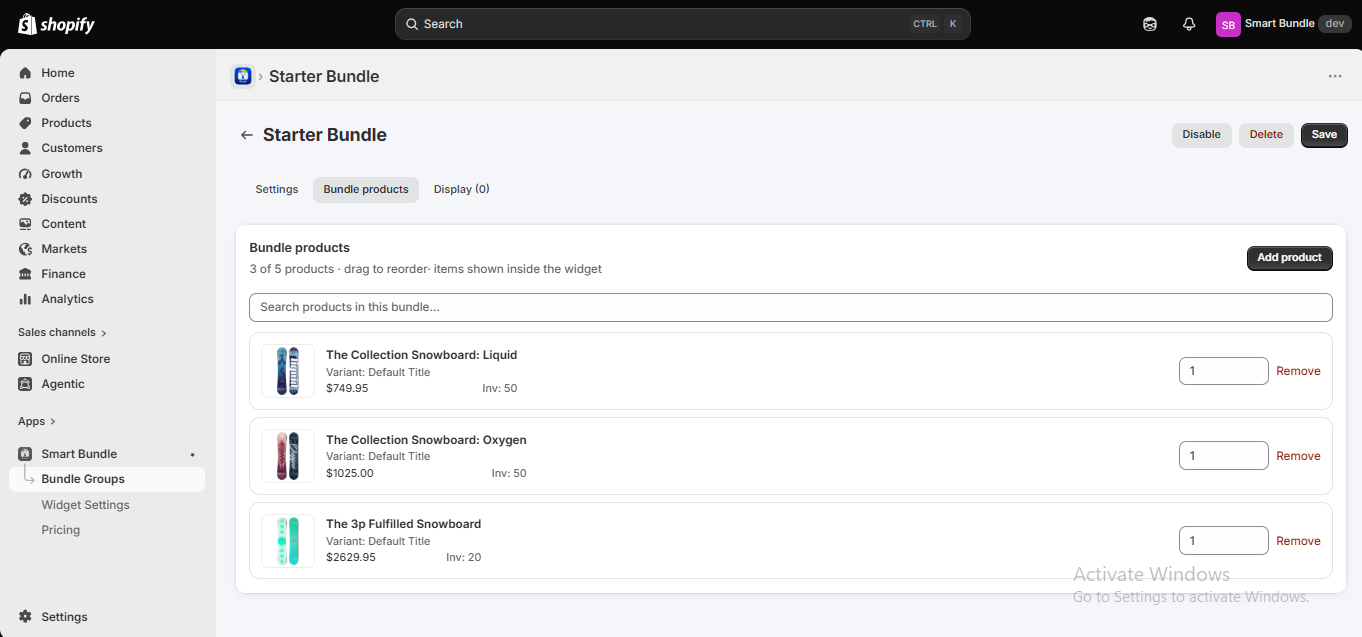
Products added to the bundle
4. Display and theme setup
- Set Display location and metafield assignment.
- Customize Widget Settings.
- Enable Smart Bundle (Auto) in Theme Editor → App embeds, then Save.
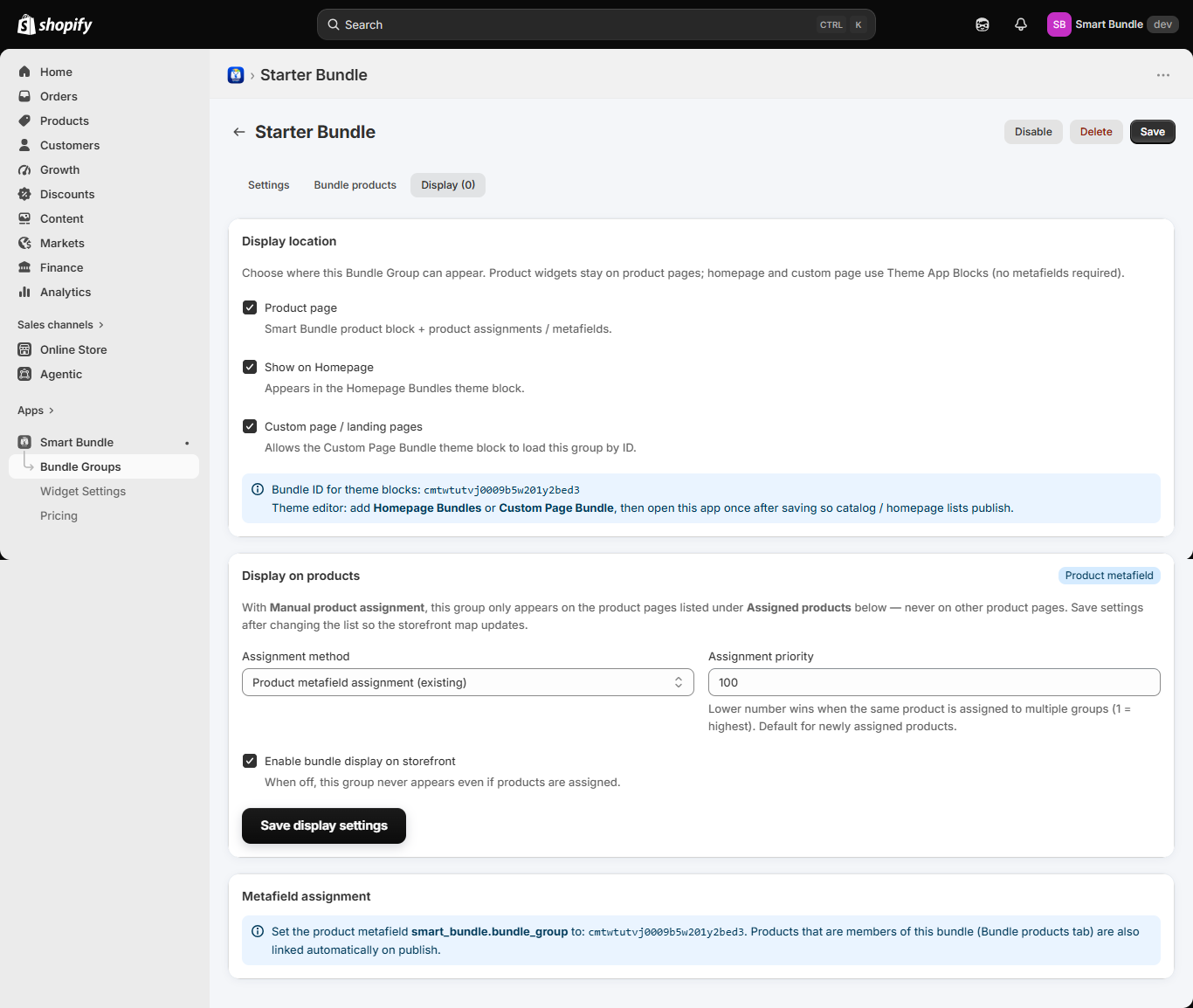
Display tab settings
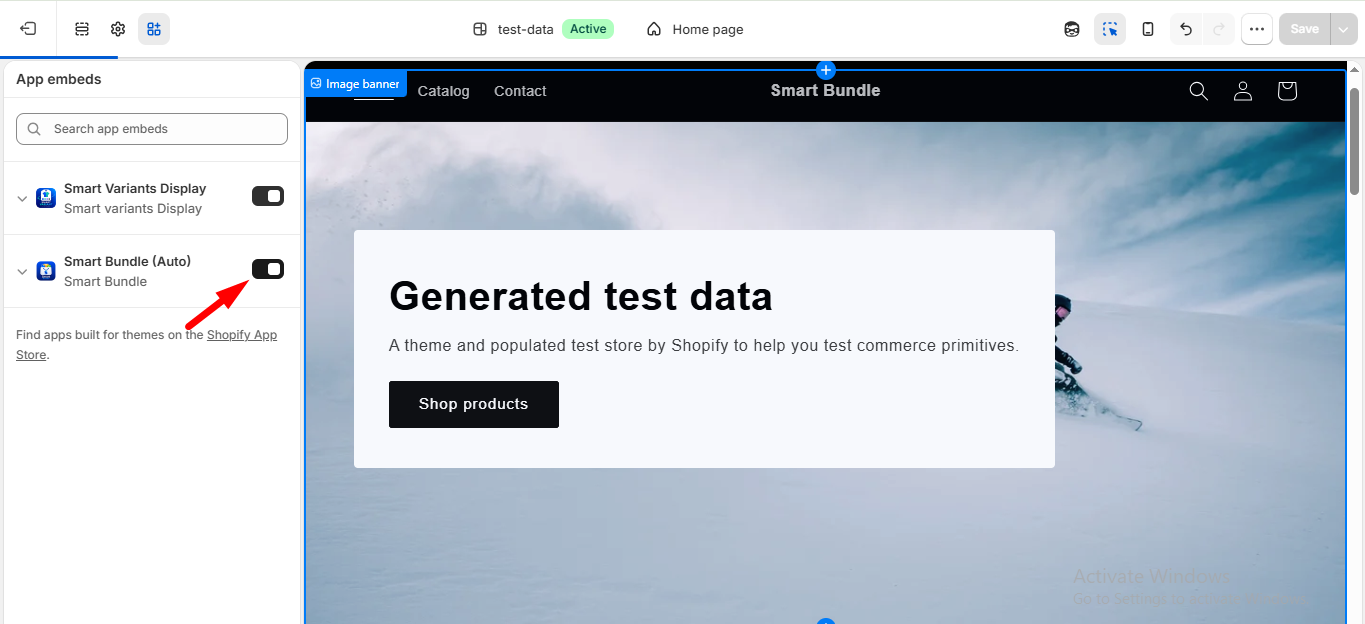
Toggle on Smart Bundle (Auto)
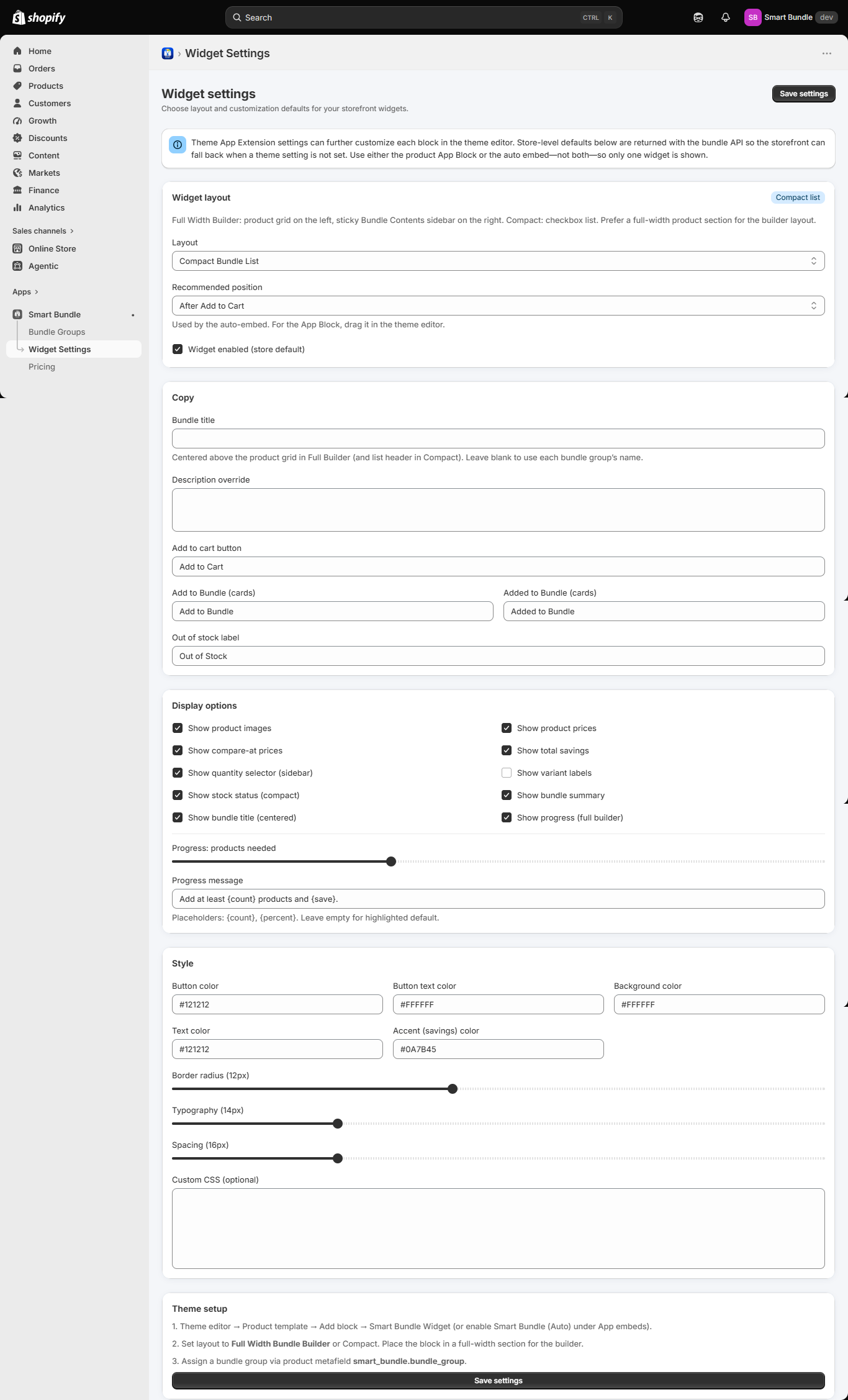
Widget Settings page
Key features shown
- Unlimited bundle groups with up to 5 products each
- Percentage or fixed-amount discounts
- Product metafield assignment (
smart_bundle.bundle_group) - Full Width and Compact widget layouts
- AJAX add to cart on the storefront
- Theme App Extension blocks and App embeds
Theme compatibility
Smart Bundle works with Shopify Online Store 2.0 themes using Theme App Extensions.
Use either the product App Block or Smart Bundle (Auto) — not both.
Need a step-by-step guide?
The Tutorial walks through the same flow with every click explained.
Open Tutorial