After installing the app, open the Smart Variant Listings dashboard. You can manage product groups, layouts, automatic rules, and settings from here.
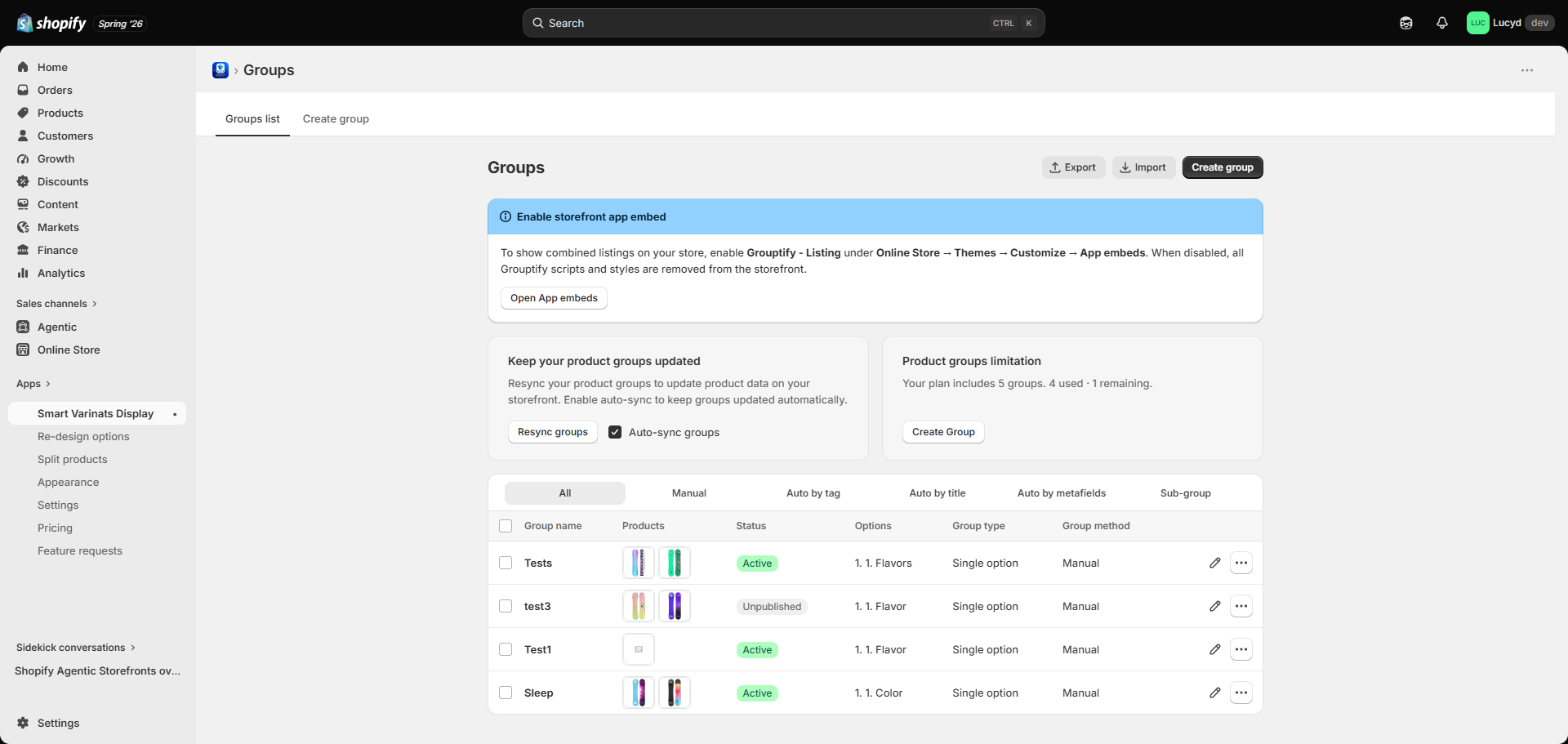
Smart Variants Display Dashboard
This guide explains how to configure Smart Variant Listings from the Shopify admin dashboard and create grouped product experiences.
After installing the app, open the Smart Variant Listings dashboard. You can manage product groups, layouts, automatic rules, and settings from here.
Smart Variants Display Dashboard
Create a new group by selecting multiple Shopify products that should appear together as variants.
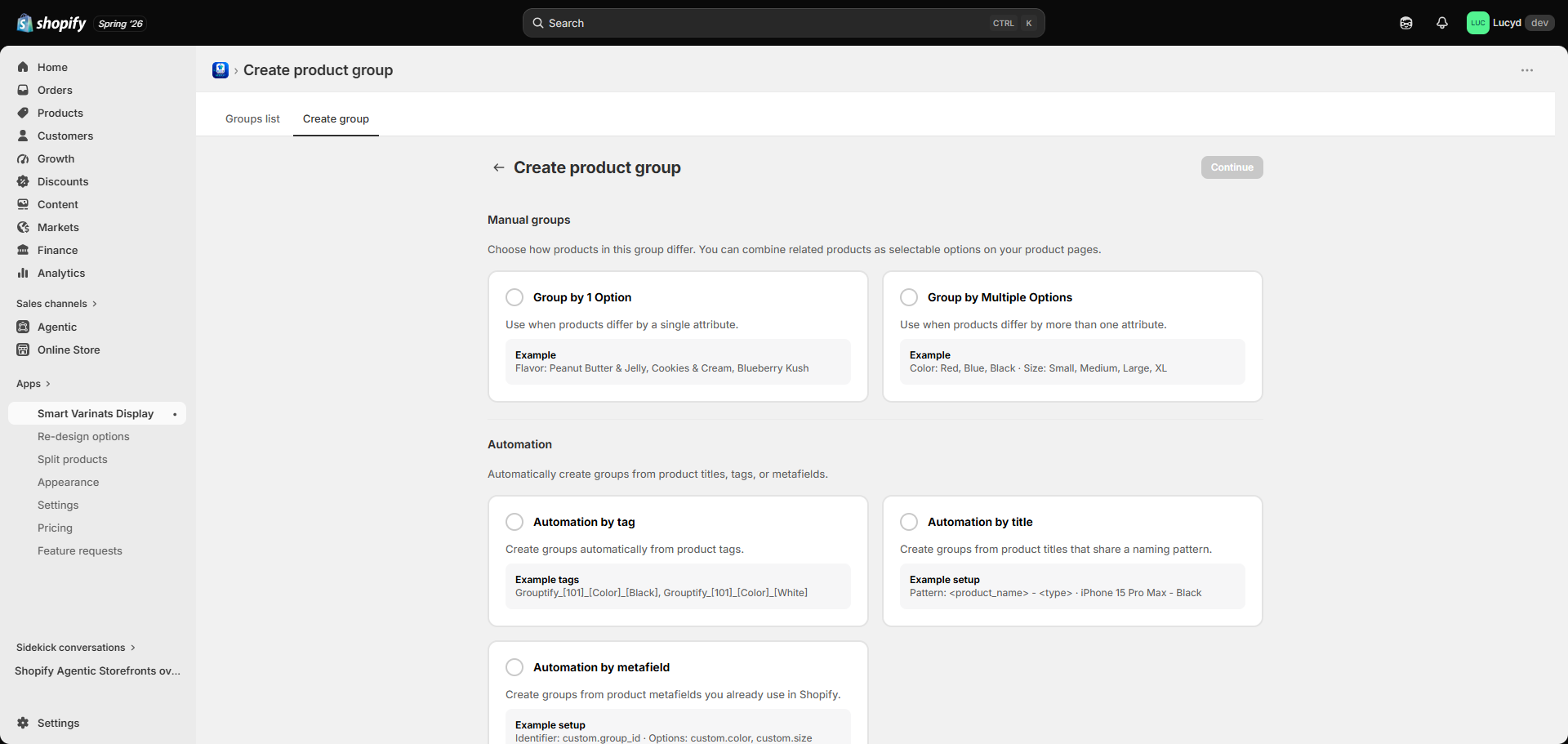
Create a new product group
Choose the products you want to connect together. Each product remains independent with its own inventory and SEO.
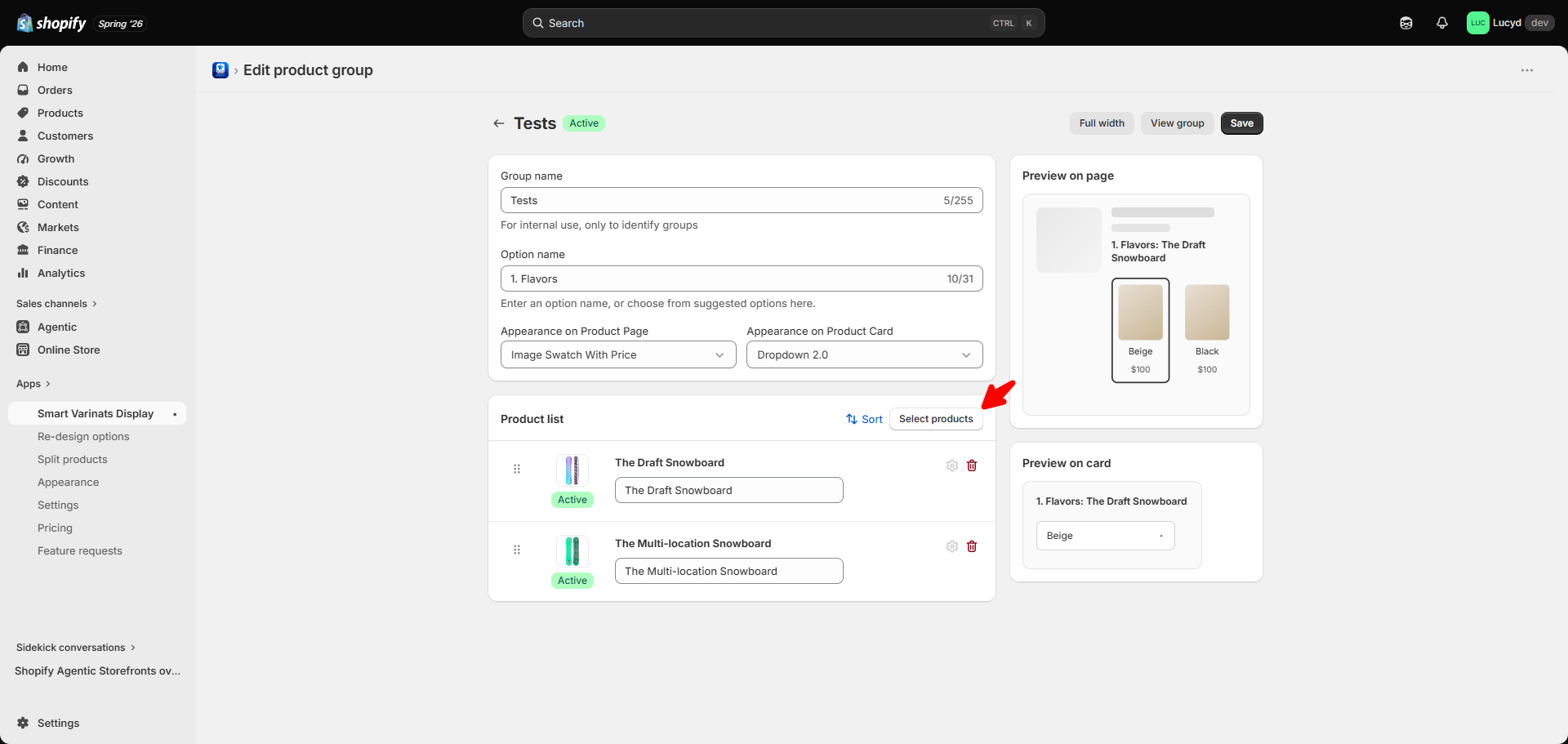
Select products for grouping
Configure how customers will see grouped products on the storefront.
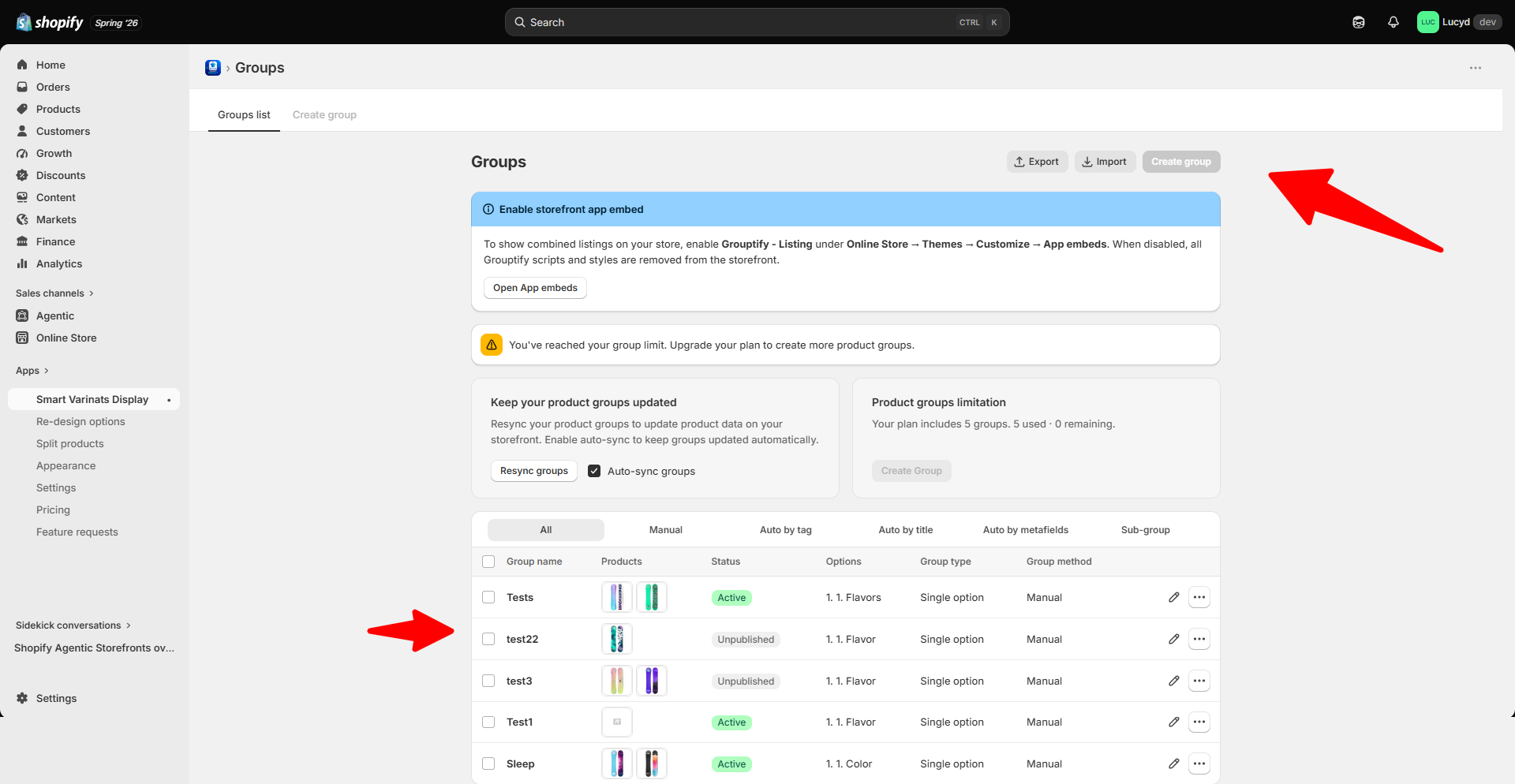
Configure storefront display options
Automatically create groups using Shopify product information.
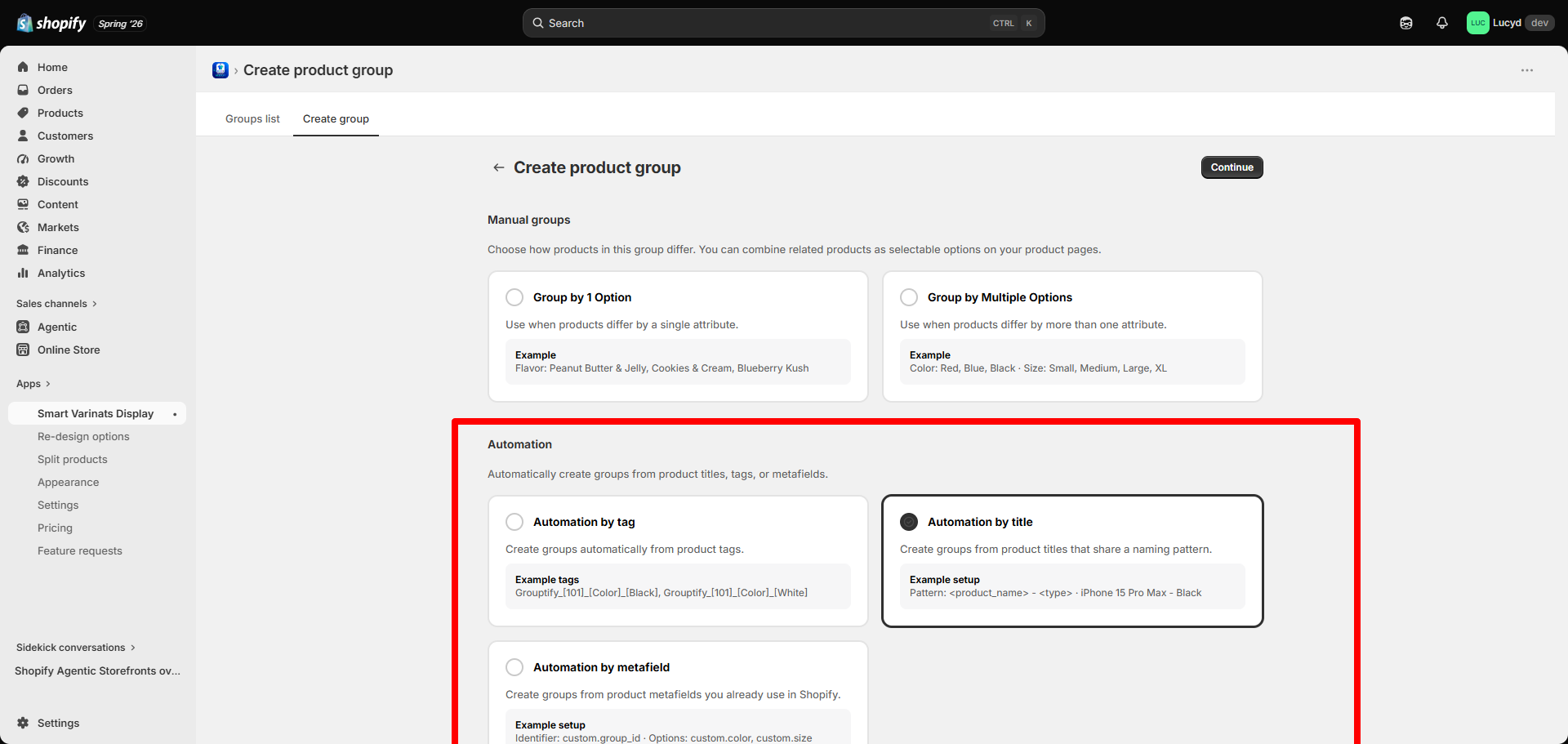
Automatic product grouping configuration
Manage large product catalogs using CSV import and export.
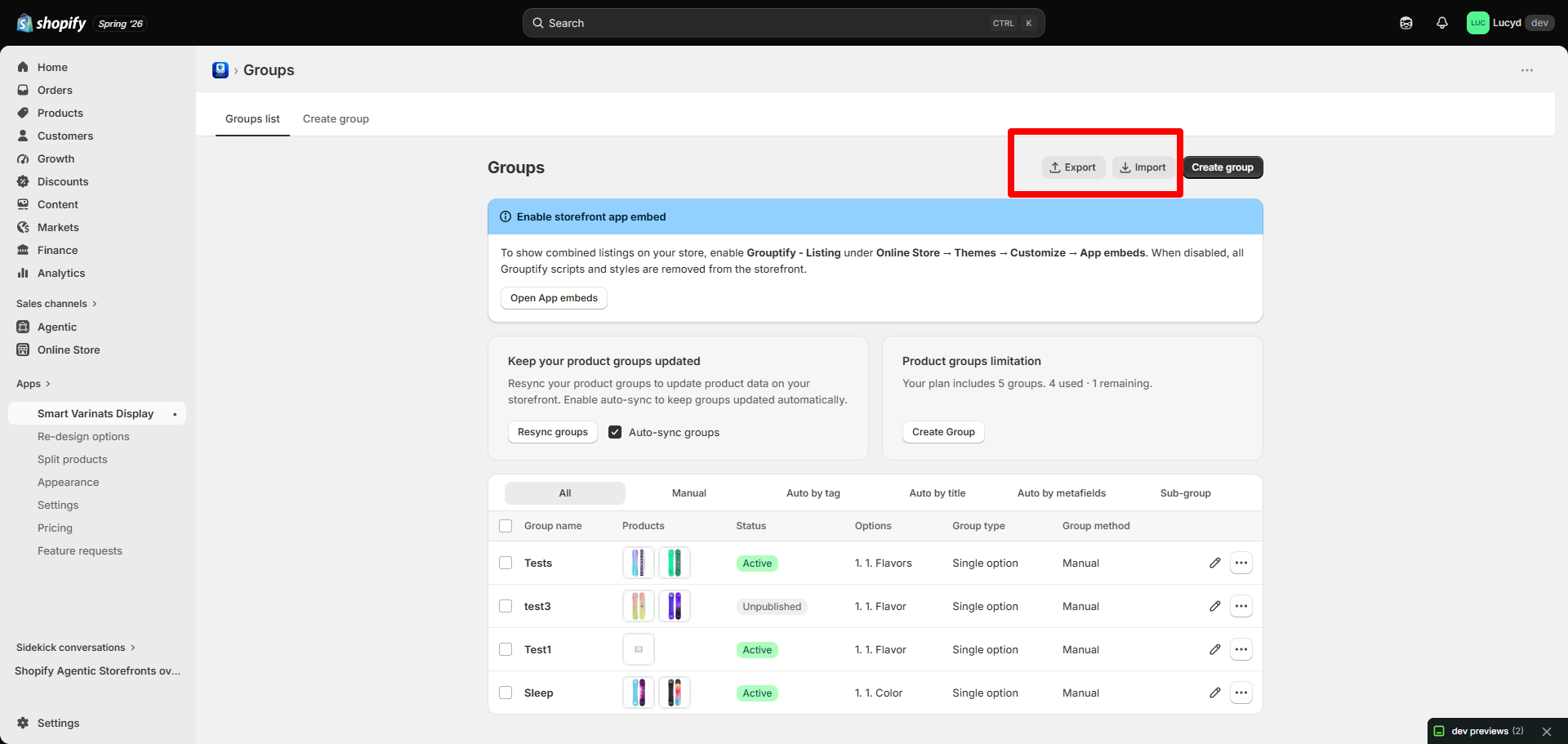
CSV import and export management
Enable the App Embed and add the Product Block from Shopify Theme Editor.
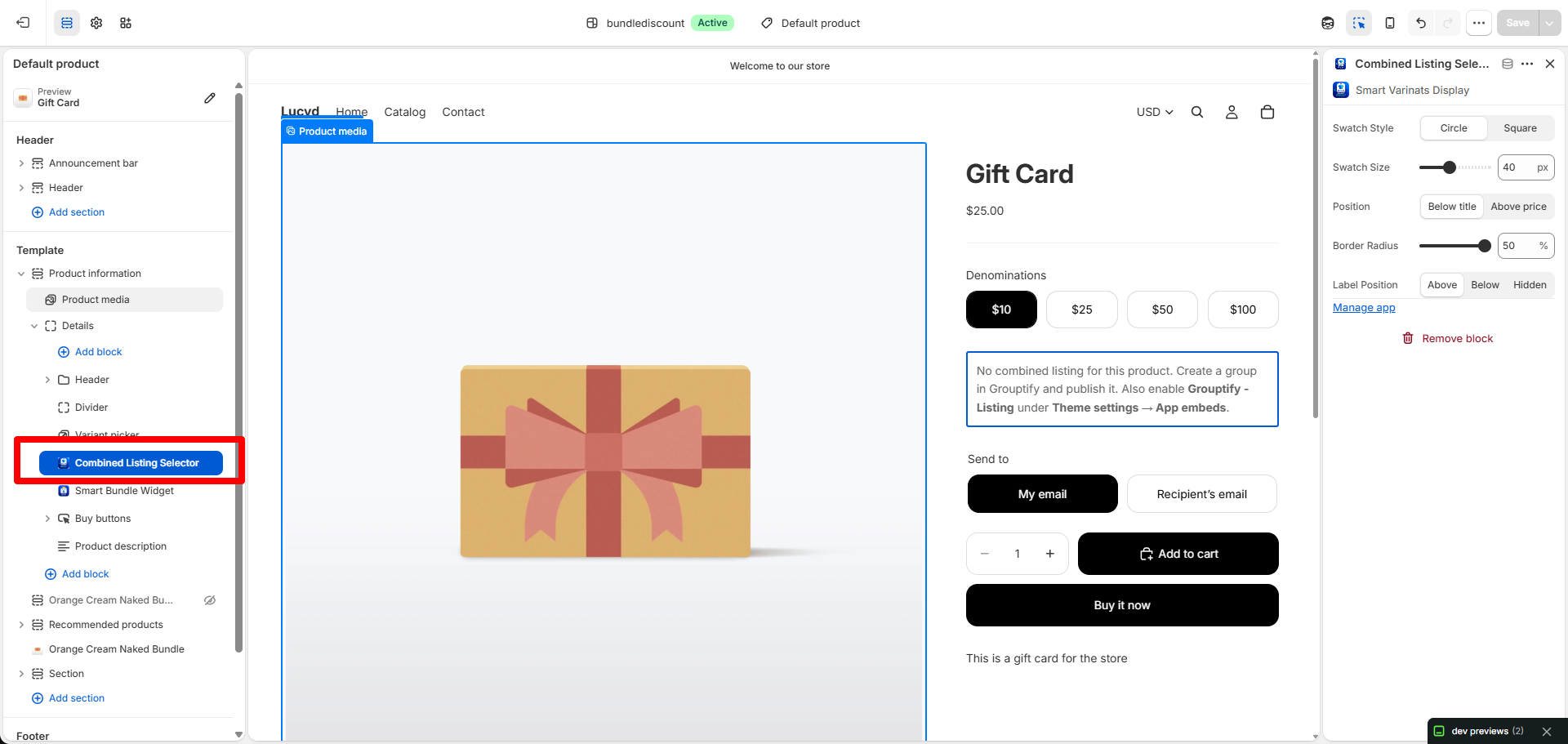
Enable Smart Variant Listings in Shopify Theme Editor
After setup, customers will see grouped products as a seamless variant selection experience.
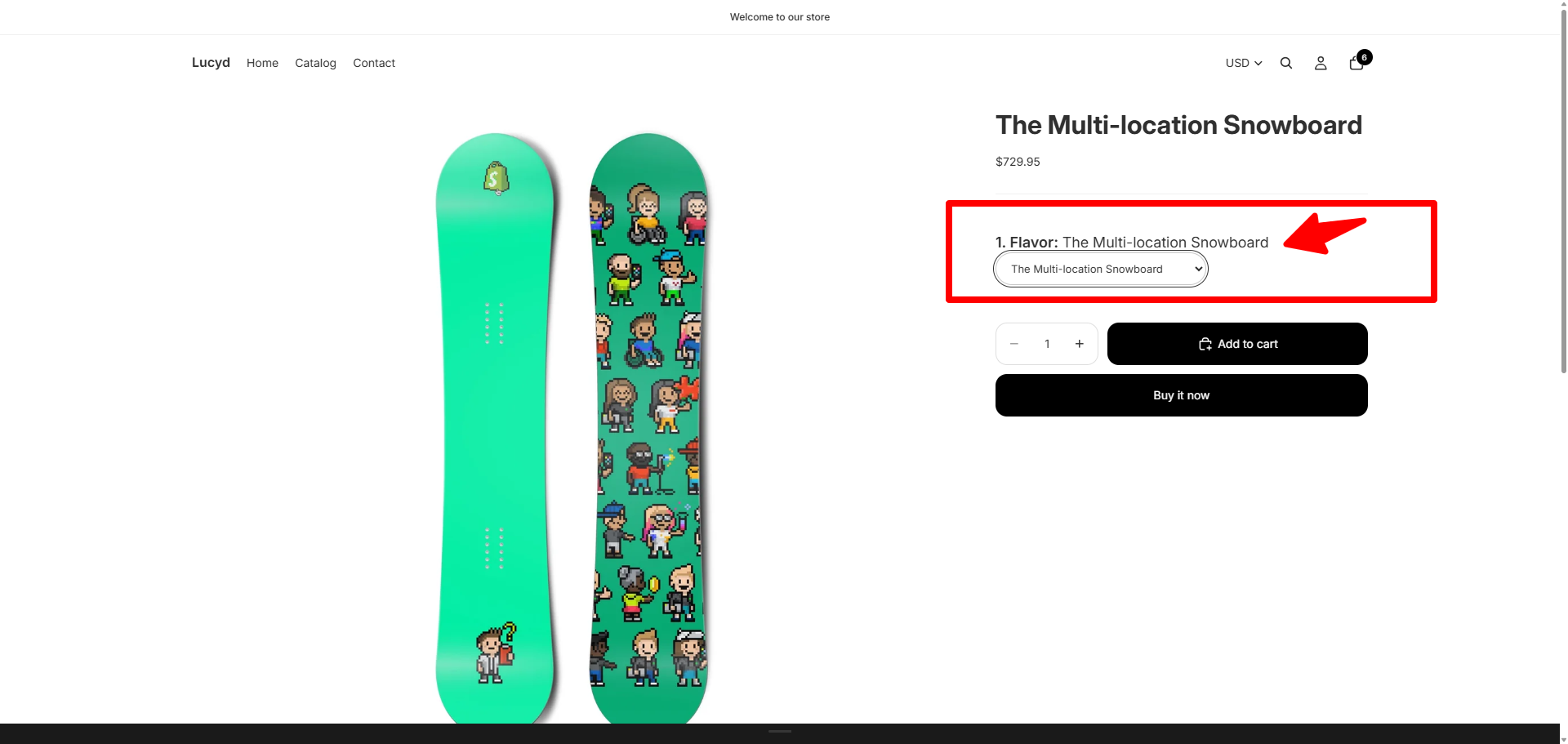
Grouped products displayed on storefront
If you need assistance with setup, contact our support team.
Email: [email protected]